

 ไทย
ไทยCustomers can upgrade their current service packages, such as hosting, Cloud VPS, or other services, by themselves through the website https://client.visperhost.net. The steps are as follows:
Step 1: Log in to the Client Area
- Go to the customer system login page
at https://client.visperhost.net. - Enter your username and password.
- Click the Login button to access the system .
Step 2: Access your service page.
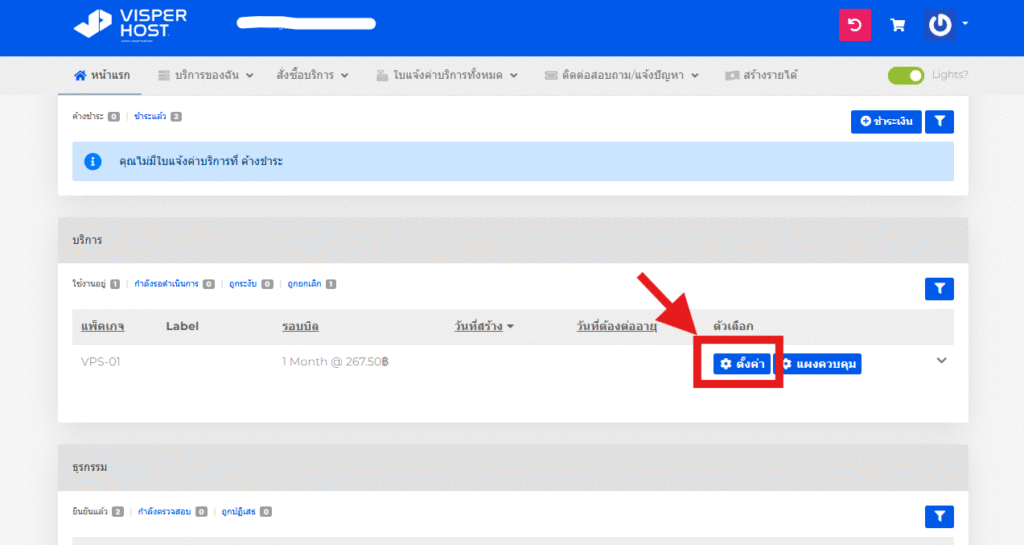
- After successfully logging in, click on the “My Services” menu .
- Select the service you wish to upgrade, such as “VPS-01,” as shown in the image, and click the “Setup” button .
Step 3: Proceed with the package upgrade.
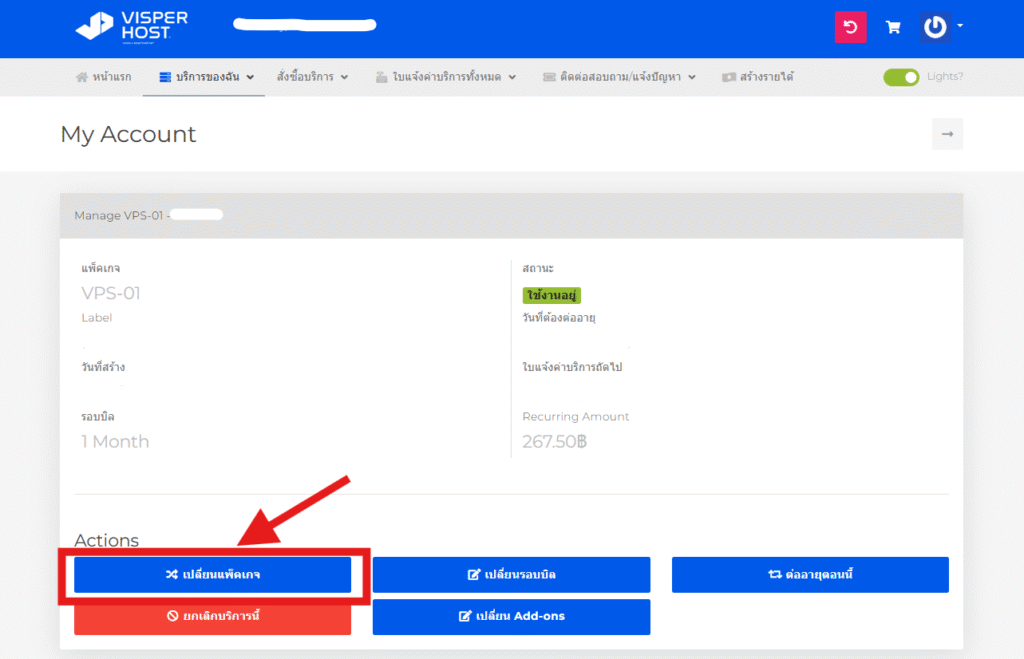
- On the service details page, click the Change Package button .
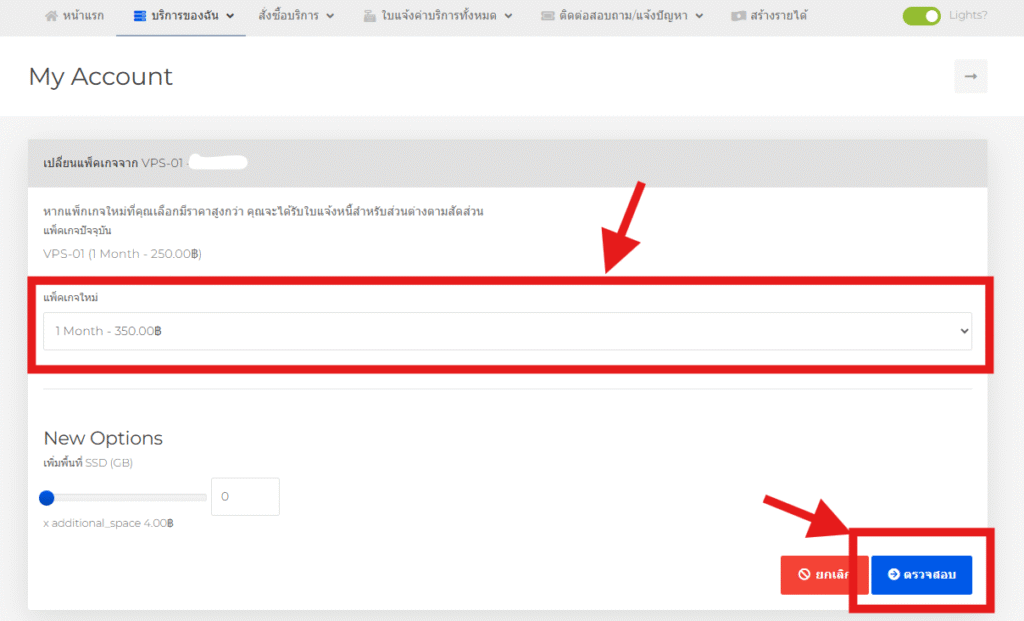
- The system will display a list of upgradeable packages.
- Select the new package you want, for example, from “VPS-01” to “VPS-2”.
- Please check the details and price differences thoroughly before proceeding and click Save.

Step 4: Make payment for the upgrade
- Once you have selected a package, the system will calculate the additional amount you need to pay.
- Select your preferred payment method.
- Press the ” Pay ” button.
- Pay the invoice issued by the system.
- The system will automatically upgrade the service once the payment is complete.
Step 5: Check Service Status
- Return to My Services page
- Please verify that your service has been successfully switched to the new package.
- If the issue persists, please try refreshing the webpage or waiting for approximately 5–10 minutes.
- If you continue to experience issues, please contact our support team so that our staff can investigate further.
*For VPS services, you must shut down the machine and restart it.*
( This is not a Restart/Reboot )
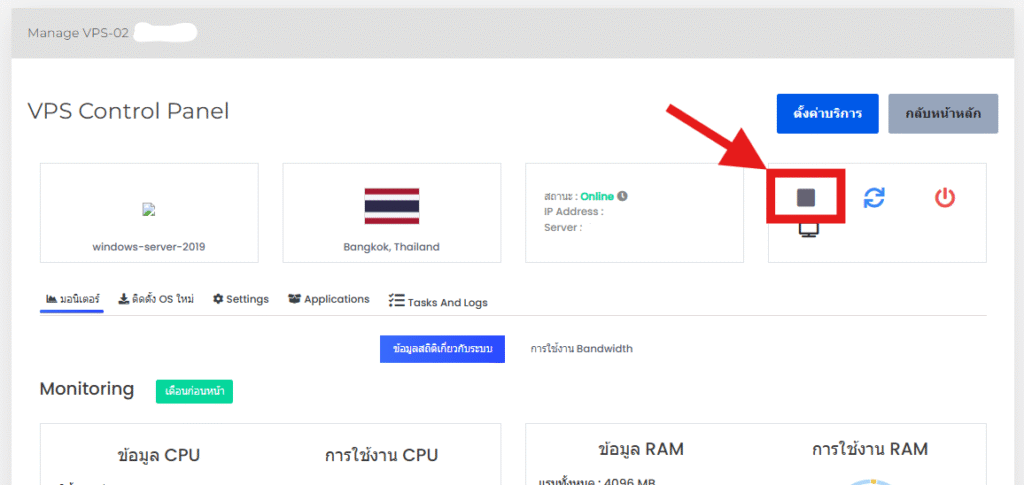
For VPS services, after completing the package upgrade, the system will not automatically adjust the resources (such as CPU, RAM, or storage space) to match the new package immediately. Customers must manually shut down and restart the server through the VPS management interface to apply the new package settings fully. Customers can follow these steps:
Step 1: Access the Control Panel
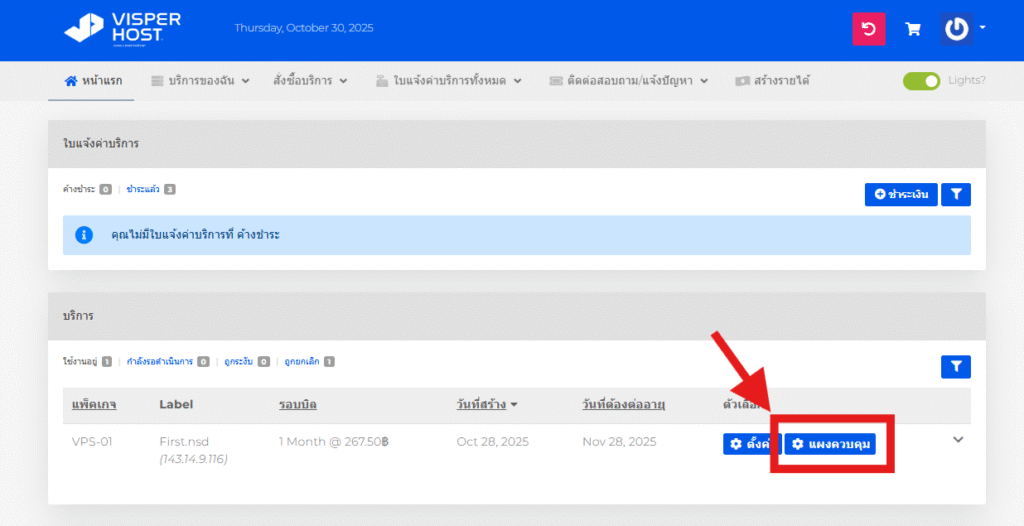
Step 2: Click to shut down the VPS (not restart/reboot).
Step 3: Click to restart the VPS (Start)
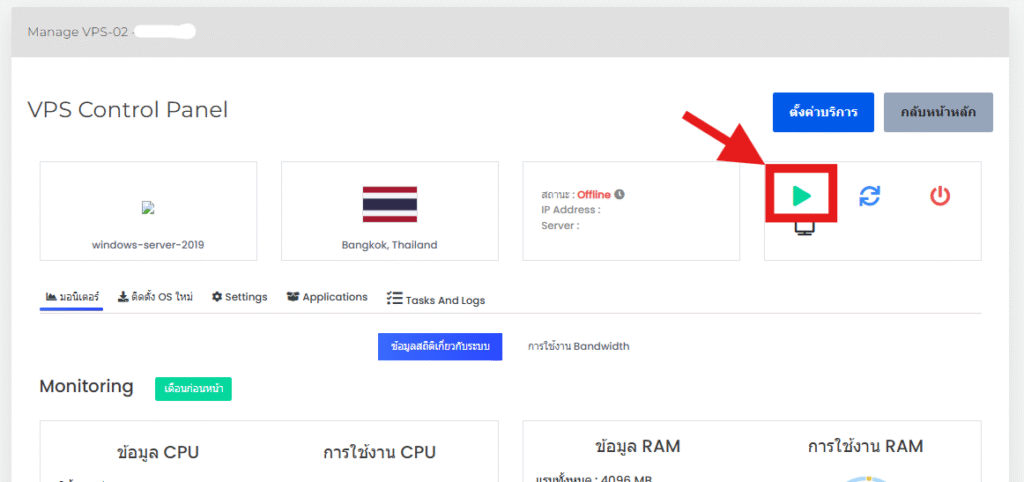
After restarting, your VPS will be updated to the new package immediately. If you encounter any issues, please contact Support so that our staff can investigate and resolve the problem as soon as possible.
