

 ไทย
ไทยIn an era where everything must be fast and accessible from anywhere, remotely accessing a VPS (Virtual Private Server) via mobile has become an extremely useful tool for system administrators, programmers, or website owners. Whether you use a Windows VPS or Linux VPS, you can easily manage your server with just a mobile phone and a remote access app. This article will guide you through the process of remotely accessing your VPS using your mobile device, along with recommendations for popular apps and step-by-step instructions for getting started.
Why do you sometimes need to access a VPS remotely using a mobile phone?
- Access the system from anywhere, anytime.
- Immediately resolve urgent issues even when you’re not at your computer.
- It’s convenient when you need to travel or work off-site and don’t have a laptop with you.
1. Remote Access to Windows VPS via Mobile Phone
Recommended Apps:
- Windows App (iOS and Android)
Connection Steps:
- Install the Remote Desktop app
- Download from the App Store or Google Play Store.
- VPS Information
- Use the IP address provided by the VPS service provider.
- Username (e.g.,
Administrator) - Password
- Enhance connectivity in the app.
- Open the Windows App on your mobile device.
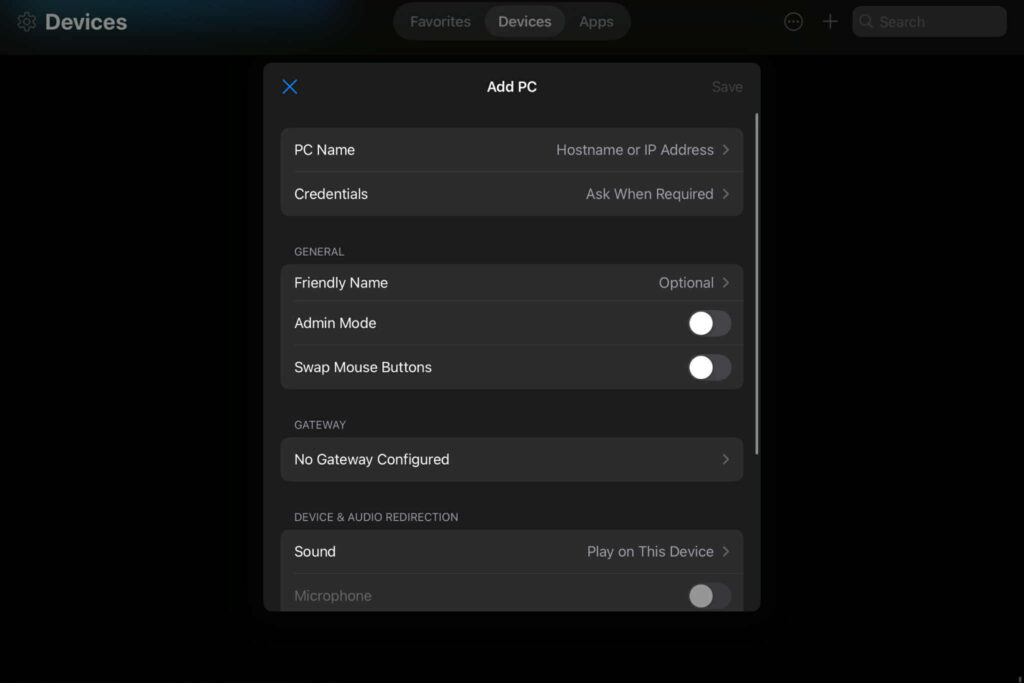
- Tap the + icon at the top right and select PC to add a new connection.
- Enter the IP or VPS name, username (e.g., Administrator), and password.
- Get Started
- Press Connect and wait for the system to connect.
- You will see a Windows screen as if you were using a computer.
2. Remote Access to Linux VPS Using a Mobile Phone
Recommended Apps:
- Termius (iOS/Android)
- JuiceSSH (Android)
Connection Steps:
- Install the SSH Client app
- For Android: We recommend Termius or JuiceSSH.
- For iOS: Termius
- VPS Information
- Use the IP address provided by the VPS service provider.
- SSH Port (usually 22)
- Username (e.g.,
root) - Password or SSH Key
- Add Host in the App
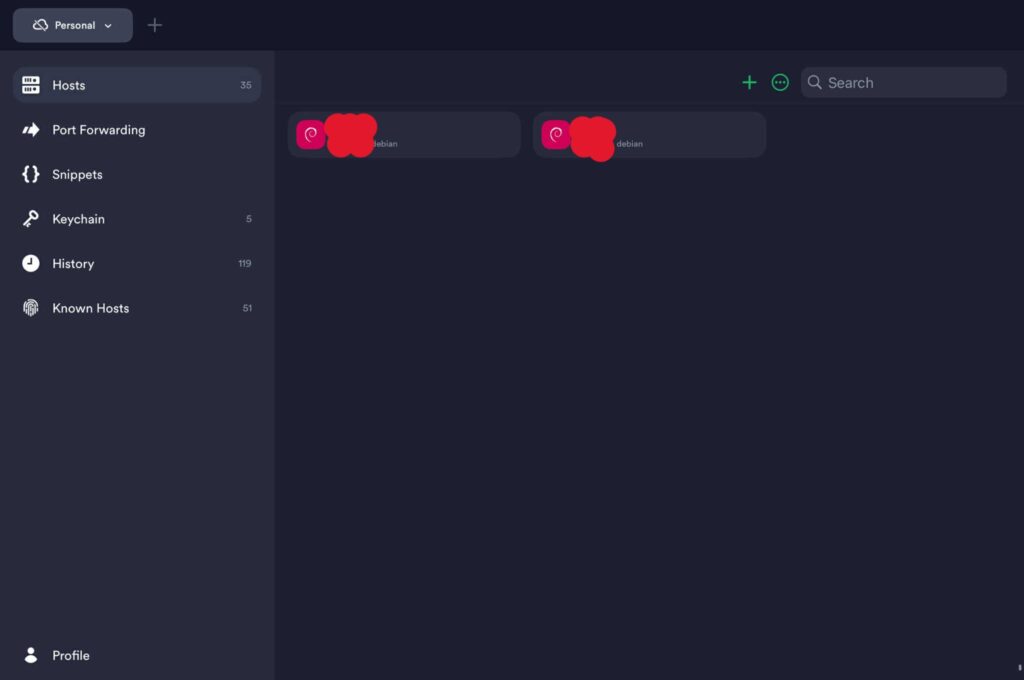
- Open the app and tap + to add a server.
- Enter Hostname/IP, Port, Username, Password/SSH Key
- Connect to the server.
- Press Connect. The system will take you to the terminal.
- Can type Linux commands as if you were at a computer terminal
Examples of commonly used commands:
sudo apt update && sudo apt upgrade– Update the system.Top: View Resource Usage
Comparing the Differences in Remote Access Between Windows and Linux VPS
| Comparative aspect: | Windows VPS (RDP) | Linux VPS (SSH) |
|---|---|---|
| Apps Used | Windows App | Termius, JuiceSSH, etc. |
| Interface | There is a graphical user interface (GUI). | Use via Terminal (CLI) |
| Connection speed | Uses more data than SSH because it has graphics. | Faster because there is less data. |
| Flexibility in Management | Suitable for tasks that require a graphical user interface (GUI). | Suitable for those proficient in Linux |
Summary:
Remote access to your VPS via mobile allows you to control and manage your server anytime, anywhere. Whether you’re using a Windows VPS through Remote Desktop or a Linux VPS via SSH, both options offer user-friendly apps and straightforward connection processes.
